Until recently, making a good AI video meant paying for a costly tool or waiting in a queue. Now, however, Google Vids lets anyone with a Google account create short AI video clips for free, using Google’s Gemini Omni video model. So if you make Reels, Shorts, product demos or class presentations, this is worth ten minutes of your time.
In this guide, I’ll show you exactly how to use Google Vids to make AI videos for free in 2026, how to write prompts that work, and which limits you should know before you start.
What is Google Vids?
Google Vids is Google’s online video editor. It sits inside Google Workspace, next to Docs and Slides, and it runs in your browser. In September 2026, Google added its Gemini Omni 1.1 Flash model to Google Vids, so you can now type a prompt and get a fully generated video scene.
Also, Google Vids is more than a clip generator. You get a timeline, templates, stock music, voice-over options and simple editing tools in the same place. In other words, you can create the clips and finish the whole video without switching apps.
What you get for free with Google Vids
Here is what a free personal Google account gets at the time of writing:
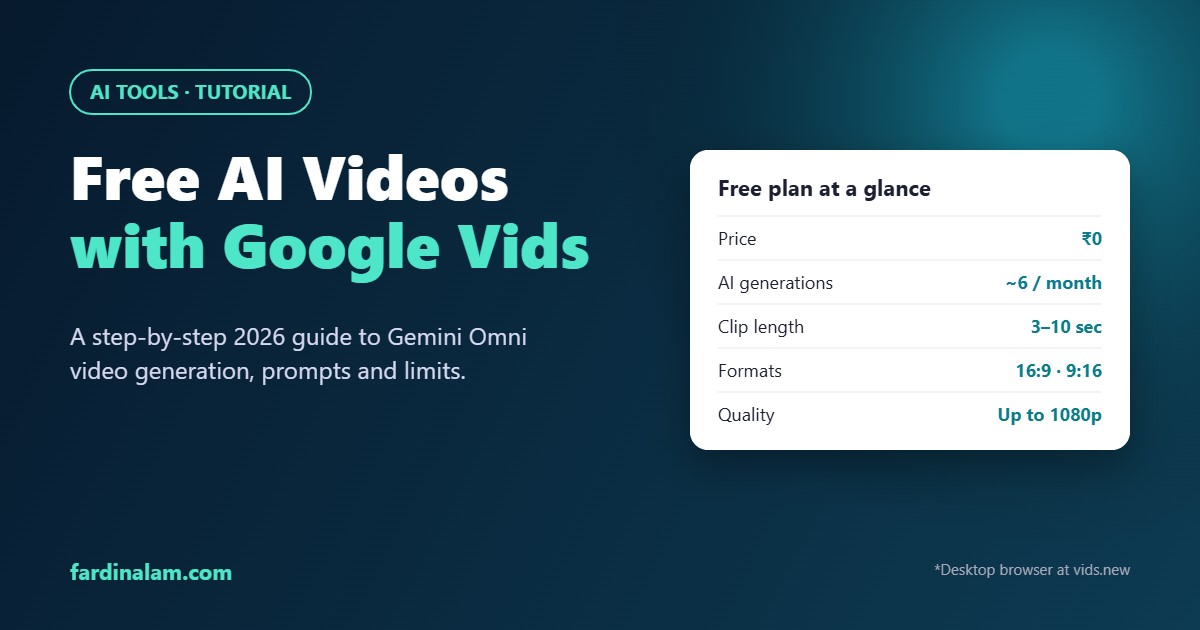
| Feature | Free Google account |
|---|---|
| Cost | ₹0, no paid plan needed |
| AI generations | About 6 per month (AI clips and AI avatars combined) |
| Clip length | 3 to 10 seconds per clip |
| Formats | 16:9 (YouTube) and 9:16 (Reels and Shorts) |
| Quality | 720p or 1080p, with upscaling to 1080p |
| Reference images | Up to 7 in Create mode |
| Where it works | Desktop browser at vids.new |
| Watermark | Invisible SynthID watermark only |
Because the free quota is small, plan your video before you generate anything. Paid Google AI plans and Workspace business plans get bigger generation pools.
How to make an AI video in Google Vids: step by step
Follow these steps on a laptop or desktop. Google Vids generation doesn’t work on the phone app yet.
Step 1: Open Google Vids
Go to vids.new in Chrome or any modern browser and sign in with your Google account. A blank video project opens straight away.
Step 2: Choose “Create AI videos”
Next, open the creation menu and select Create AI videos. A side panel then opens with four modes: Create, Animate, Edit and Extend.
Step 3: Set the format and length
Before you type anything, set the canvas. For example, switch on Portrait for a 9:16 Reel, or keep 16:9 for YouTube. Then choose a clip length between 3 and 10 seconds.
Step 4: Write your prompt and generate
Now describe your scene. A clip usually takes one to a few minutes to generate. When it’s ready, click Insert, because otherwise the clip stays only in your session history.
Step 5: Extend, add voice and music
To make a longer scene, select a clip and click Extend. Then describe only what happens next, since the model keeps the same character, lighting and setting. After that, add a voice-over and pick background music from the stock library.
Step 6: Export your video
Finally, go to File → Download and save the video as an MP4. Your project also stays in Google Drive, so you can come back and edit it later.
How to write prompts that work in Google Vids
Google recommends a simple structure, and it works well in practice. Cover these six things in every prompt:
- Subject: who or what is on screen
- Location: where the scene takes place
- Action: what happens in those few seconds
- Camera: close-up, wide shot, slow push-in, top view
- Lighting: morning sun, warm indoor light, neon at night
- Sound: traffic noise, soft music, rain, silence
For example, instead of “a cup of chai”, write: “Close-up of a glass of masala chai on a wooden table at a roadside tea stall in the morning, steam rising slowly, warm sunlight from the left, camera slowly pushes in, soft street sounds in the background.”
Also, keep each Extend prompt short. Describe one action only, such as “the vendor pours more chai into the glass”, and let the model handle the rest.
Turn a photo into a video with Google Vids
The Animate tab brings a still photo to life. First, upload a JPG or PNG. Then describe the movement you want, not the scene itself, because the photo already shows the scene. For instance, “the model turns her head and smiles, fabric moves gently in the breeze” works far better than a full description of the outfit.
As a result, small brands can turn one product photo into a short moving clip for Instagram. Just shoot the photo in vertical format first, so you don’t get black bars in a 9:16 video.
Google Vids limits you should know
Google Vids is generous for a free tool. Still, it has a few limits:
- Small free quota. Six generations go quickly, and a failed attempt still counts. So write and check your prompts before you click Generate.
- Short clips. Each clip is 10 seconds at most, so longer scenes need Extend, which also uses quota.
- English first. Some AI features, such as “Help me create”, work only in English for now. Google says text-to-speech in more than 100 languages is coming, but it hasn’t given a date.
- Usage terms. Google’s help pages say generated media is meant for use inside Vids. So read the current terms before you post clips elsewhere or use them in ads.
- AI labels. Every clip carries an invisible SynthID watermark, therefore platforms and viewers can check that AI made it.
Smart ways to use Google Vids
Here are a few practical ideas that fit the free limits:
- Reel hooks: generate one striking 5-second opening shot, then film the rest yourself.
- Product teasers: animate a product photo for a festive sale post.
- Explainer videos: mix AI scenes with screen recordings and a voice-over.
- Class and office presentations: add a short AI scene instead of a stock clip.
If you want more free tools like this, then read our list of free AI tools most Indians don’t know about. Besides that, our guide on how to use Google Gemini for free covers Google’s chatbot in detail. For the official announcement, see Google’s post on Gemini Omni in Google Vids.
Google Vids: frequently asked questions
Is Google Vids really free?
Yes. Anyone with a personal Google account can generate AI videos in Google Vids without a paid plan, although the free monthly quota is small.
Can I use Google Vids on my phone?
Not for AI generation at the moment. You need a desktop or laptop browser at vids.new.
How long can a Google Vids AI clip be?
Each clip runs from 3 to 10 seconds. However, you can join several clips and use Extend to build a longer scene.
Does Google Vids add a visible watermark?
No visible logo appears on the clip. Instead, Google embeds an invisible SynthID watermark that marks the video as AI-generated.
The bottom line on Google Vids
Google Vids is one of the easiest ways to make AI videos for free in 2026. The free quota is small, so it won’t replace a full video team. Still, for Reel hooks, product teasers and quick explainers, it saves real time and money. Plan your shots, write clear prompts using the six-part formula, and you’ll get far more out of every free generation.